Back
This step-by-step guide explains auto-select creatives, creative recommendations, exclusions, and catalog creative optimization for better campaign performance.
TikTok Ads

Running successful TikTok Catalog Ads campaigns requires more than just uploading products into a catalog. The creative system behind the campaign plays a crucial role in helping TikTok’s algorithm select, generate, and optimize ads that convert.
This guide explains how advertisers can set up and manage creatives for Catalog Ads under the Sales Objective (Creator+), including how to auto-select creatives, add new assets, exclude unsuitable creatives, and optimize catalog-based video templates.
[Ads Creation Page] Auto-Select Creatives
Step 1: Visit the Ads Creation Page
Step 2: View the Creative Assets tile
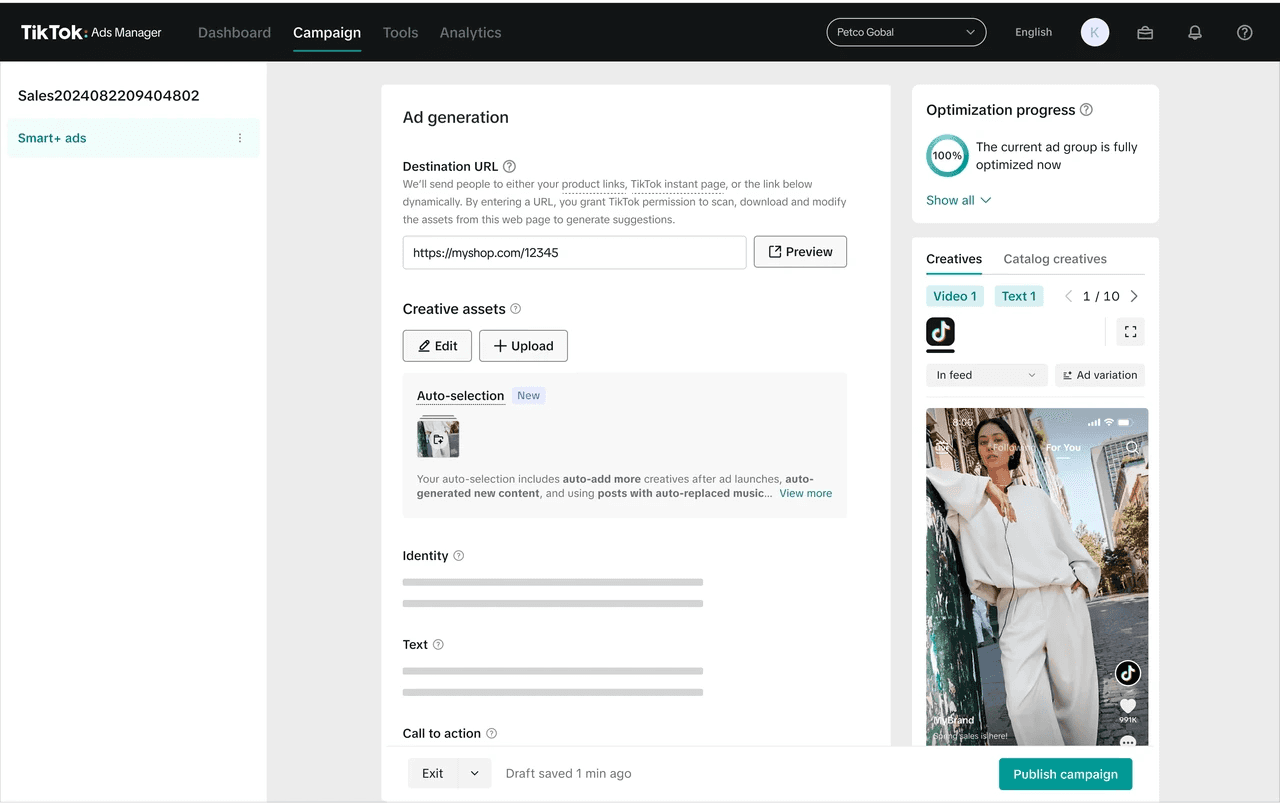
Step 3: Explore various creative selection scenarios:
If you have a Catalog and Destination URL:
(A) Auto-Select Creatives
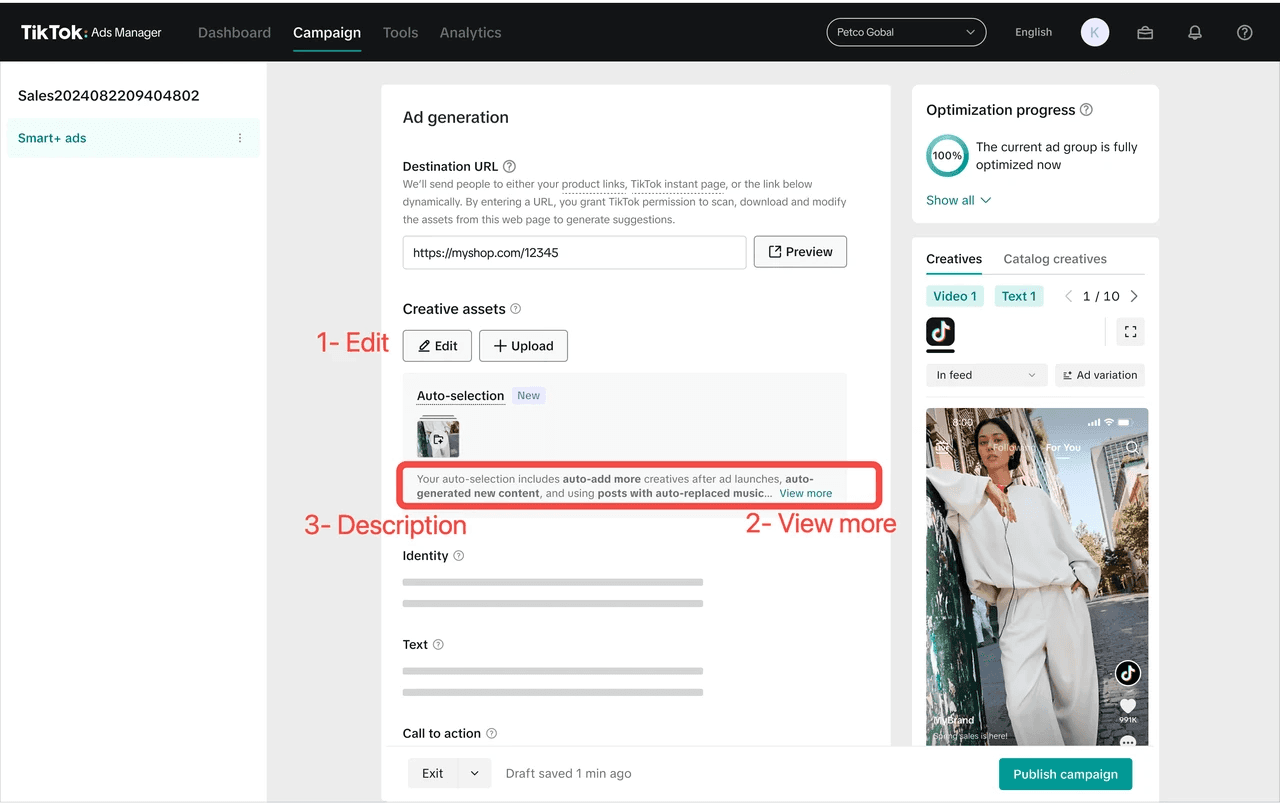
Add in "Destination URL" such that creatives are auto-selected
"Edit" button: Leads you to the Recommendation Drawer
"View More" button: Leads you to a description explaining the functionality
(B) Auto-Select Creatives with Manual Creatives added
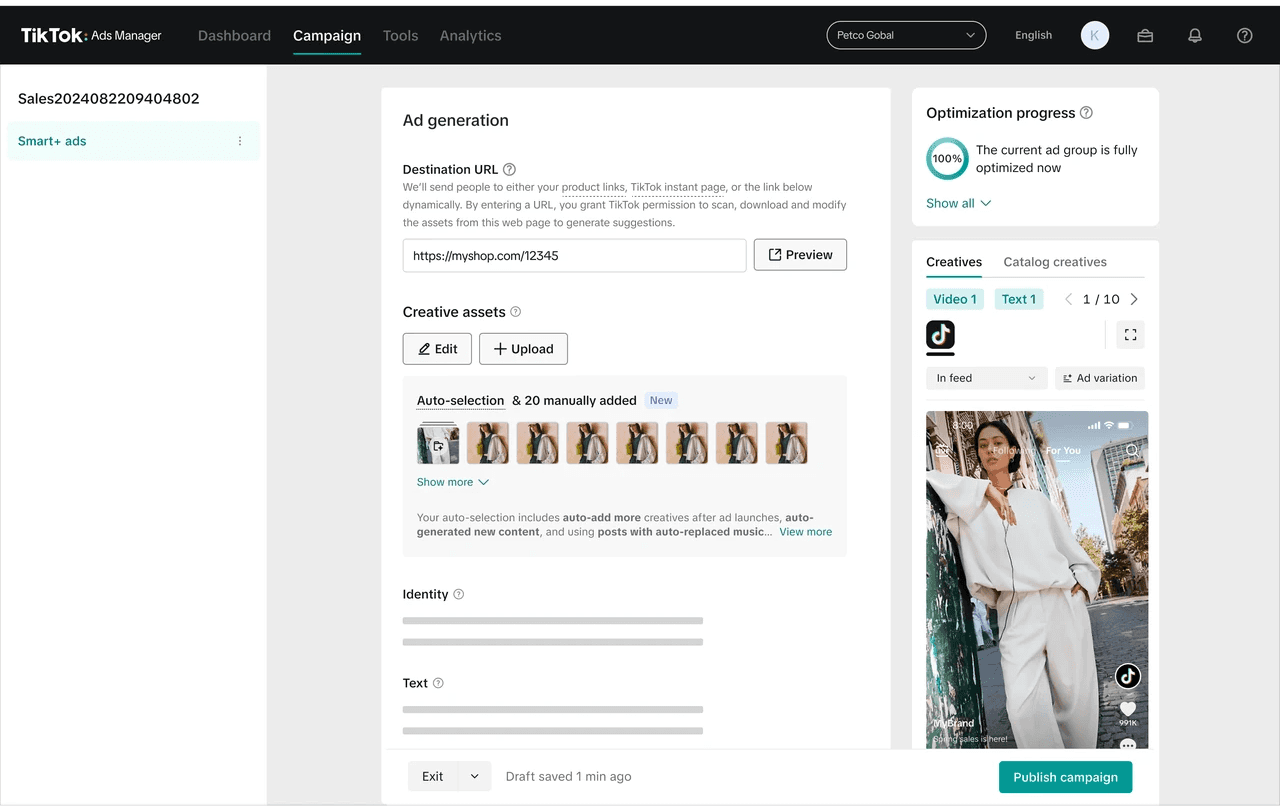
"Edit" button: Leads you to the Recommendation Drawer
"View More" button: Leads you to a description explaining the functionality
If you don't have a Catalog and you don't have a Destination URL:
(C) Manually Added Creatives only
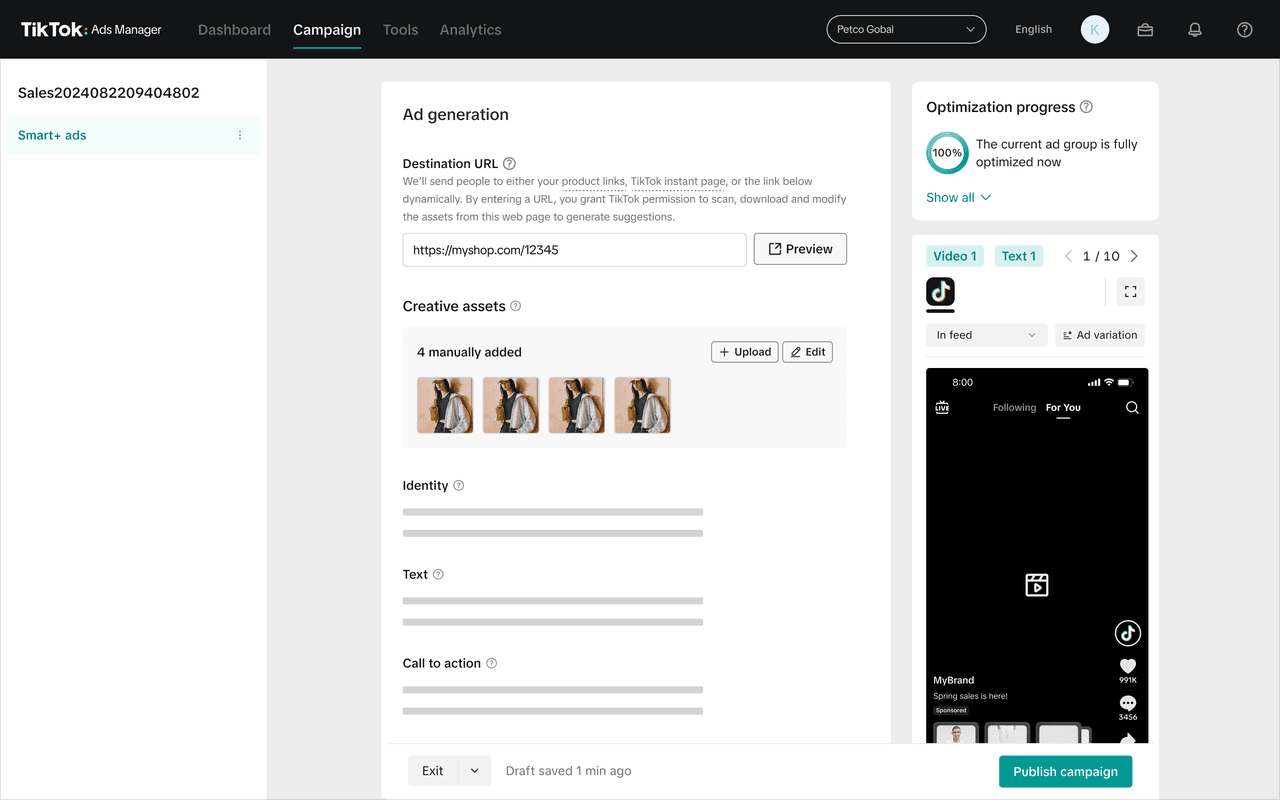
"Edit" button: Leads you to TikTok posts
"View More" button: Leads you to a description explaining the functionality
Step 4: Creative Upload
Test out uploading creatives directly on the Ad Generation page
[Creative Recommendations Page] Add Creatives
Step 1: Creative Recommendation Page
Visit the Ads Creation Page
View the Creative Assets tile
Auto-Select Creatives
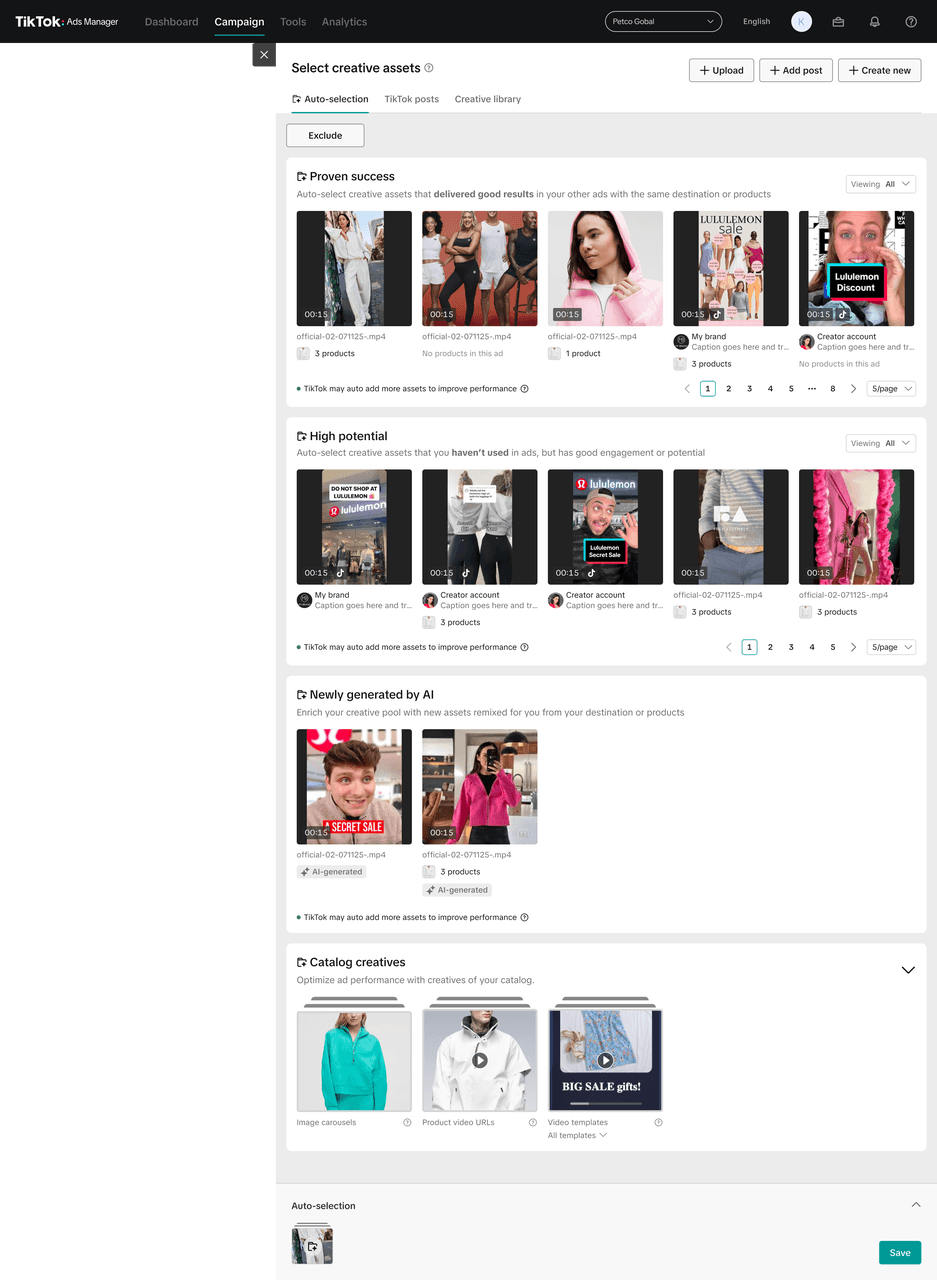
Click the "Edit" button which will leads you to the Recommendation Drawer
Step 2: Add Creatives
Explore adding creatives from 4 different sources:
Net New Creatives
TikTok Posts
Creative Library
Catalog Library

Step 3: Auto-Add Feature
Turn on the auto-add feature

[Creative Recommendations Page] Exclude Creatives
Exclude Creatives
(A) Exclude Single Creative in Auto-Selected Drawer
Go to the exclude drawer
Hover over the post
Click "3 dots" icon
Click "Exclude"
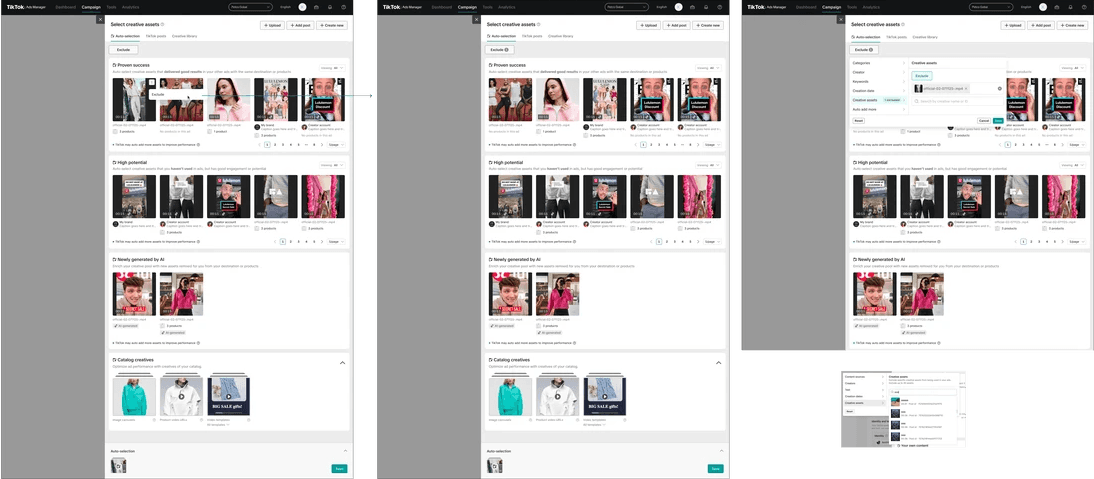
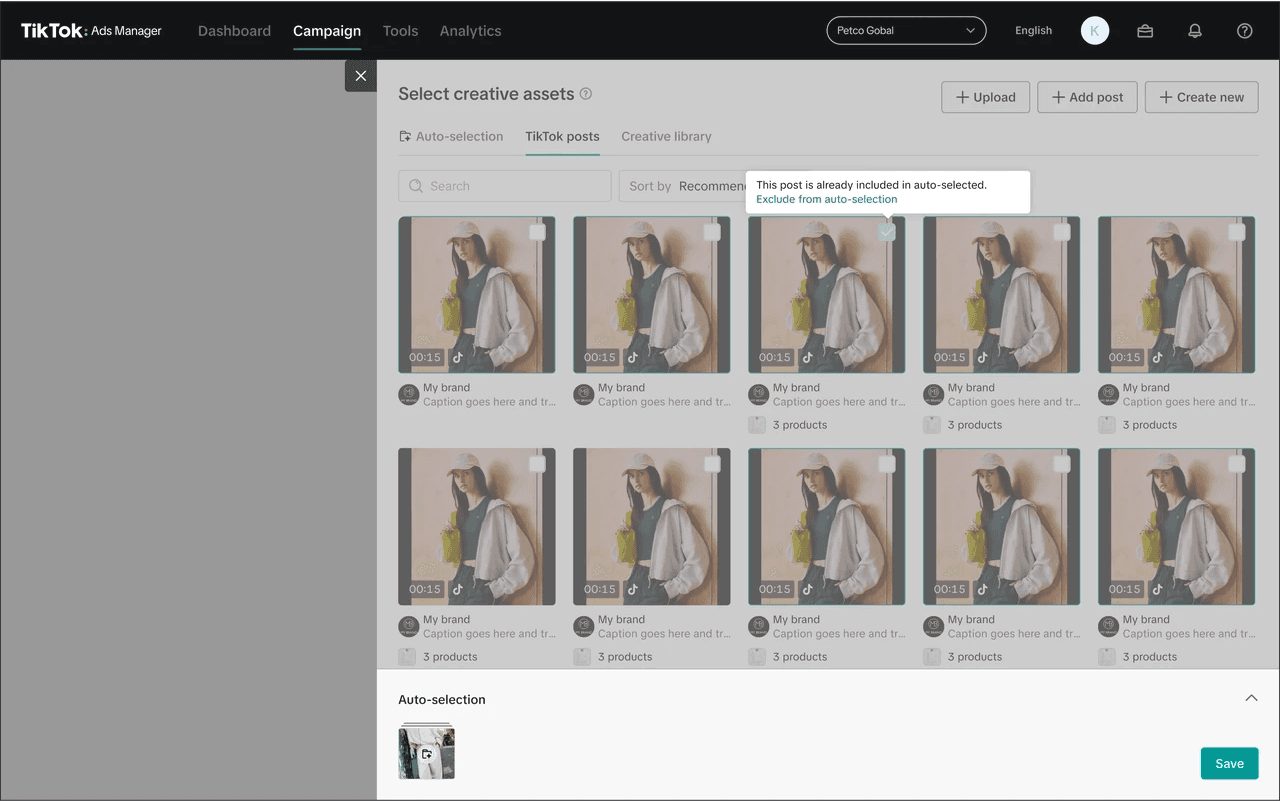
B) Exclude Creatives from TT Post and Creative Library Tab
Go to TikTok Post or Creative Library
Select the Creative check box to exclude
(C) Exclude Single Creative in Summary Bar
Go to the exclude drawer
Go to the Summary bar
Click on a Single Creative to exclude

Exclusion Filters
Explore creative exclusion filters across:
Categories
Creators: Type in keywords and enter "save" to select
Keywords: Type in keywords and enter "save" to select
Creation Date: Select a date range from the calendar (start date or end date)
Creative Assets: Type in keywords or ID to search
[Creative Recommendations Page] Catalog Creative
Step 1: View Catalog Creatives in Recommendation Drawer
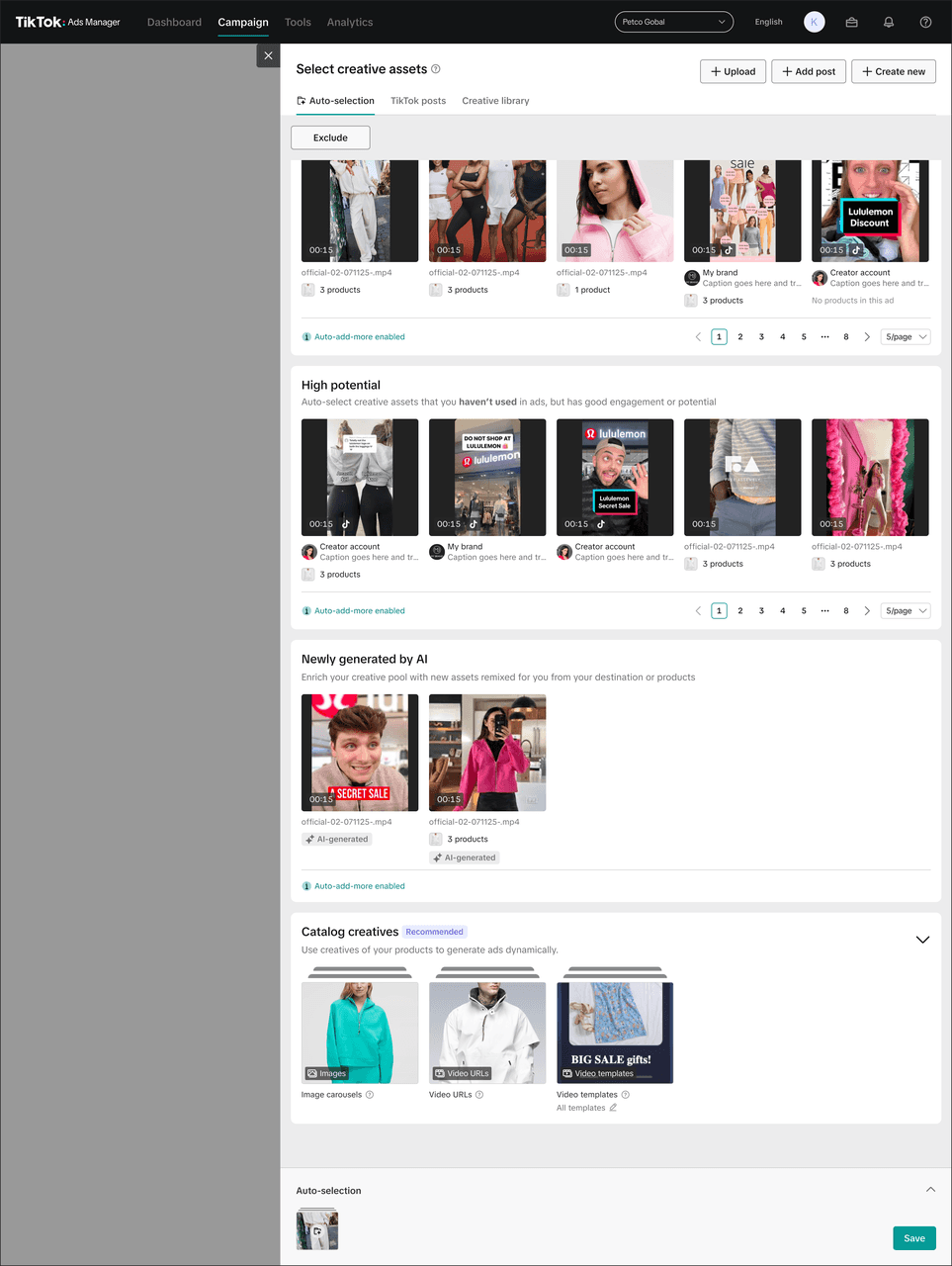
Step 2: Video Template Selection
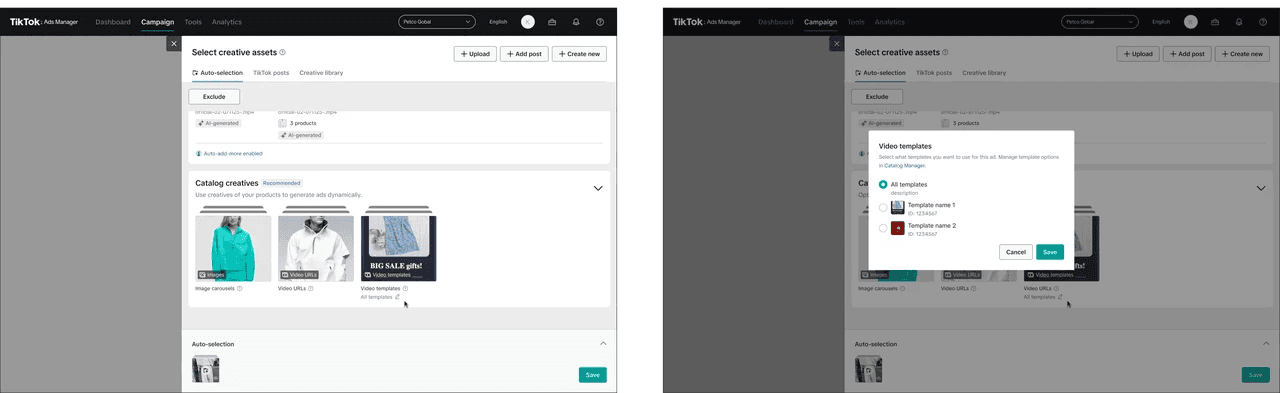
Click "Video Templates"
Choose selected video templates
Step 3: Enable or Disable Catalog Creative Types
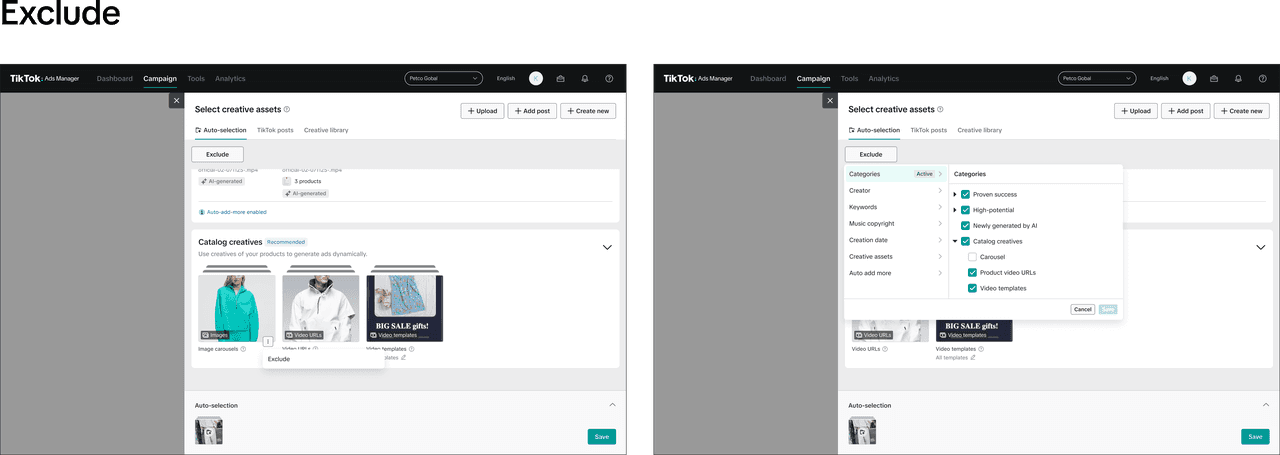
Choose to exclude certain catalog creative types
Conclusion
Creative setup plays a critical role in the success of TikTok Catalog Ads campaigns. By combining automated creative recommendations with manual controls, advertisers can build a strong creative pipeline that continuously adapts to audience behavior. Using features like Auto-Select Creatives, Creative Recommendations, Auto-Add, and Catalog Video Templates, advertisers can scale campaigns faster while maintaining creative quality.
If you want to maximize the performance of your TikTok Ads or TikTok Shop campaigns, proper creative setup is one of the most important factors.
Contact Ecomdy to get expert guidance on setting up and optimizing your TikTok Catalog Ads campaigns. Our team can help you build scalable creative strategies, automate campaign management, and unlock better performance across global markets.